Connect Google Classroom and create your first exam
You can connect Google Classroom, import a course and its students, and publish your first linked exam without recreating your class in The Learning Mate. Allow about ten minutes for the initial setup. After that, you can keep the student list up to date and open the resulting assignment directly in Google Classroom.
Before you start
You will need:
- A teacher account in The Learning Mate.
- A Google account that teaches at least one active Google Classroom course.
- Permission from your school to connect third-party applications to Google Workspace. If Google blocks the connection, your Workspace administrator may need to approve The Learning Mate.
- A question paper ready to upload. You can also upload a mark scheme or ask The Learning Mate to generate one during exam creation.
Use the Google account that owns or teaches the course you want to import. Connecting a personal account or a student account will not show the teacher courses you expect.
Step 1: Connect your Google account
- Sign in to The Learning Mate and open Dashboard → Integrations.
- Find Google Classroom and select Connect Google Classroom.
- Choose the Google account that you use to teach the course.
- Review Google's permission screen and allow the requested access. The Learning Mate uses this access to read courses and student lists, create coursework, receive submissions, and work with the files attached to them.
- When you return to The Learning Mate, the Google Classroom Connected! message confirms that the connection worked.
- Select Go to Courses Page to continue straight to course import.
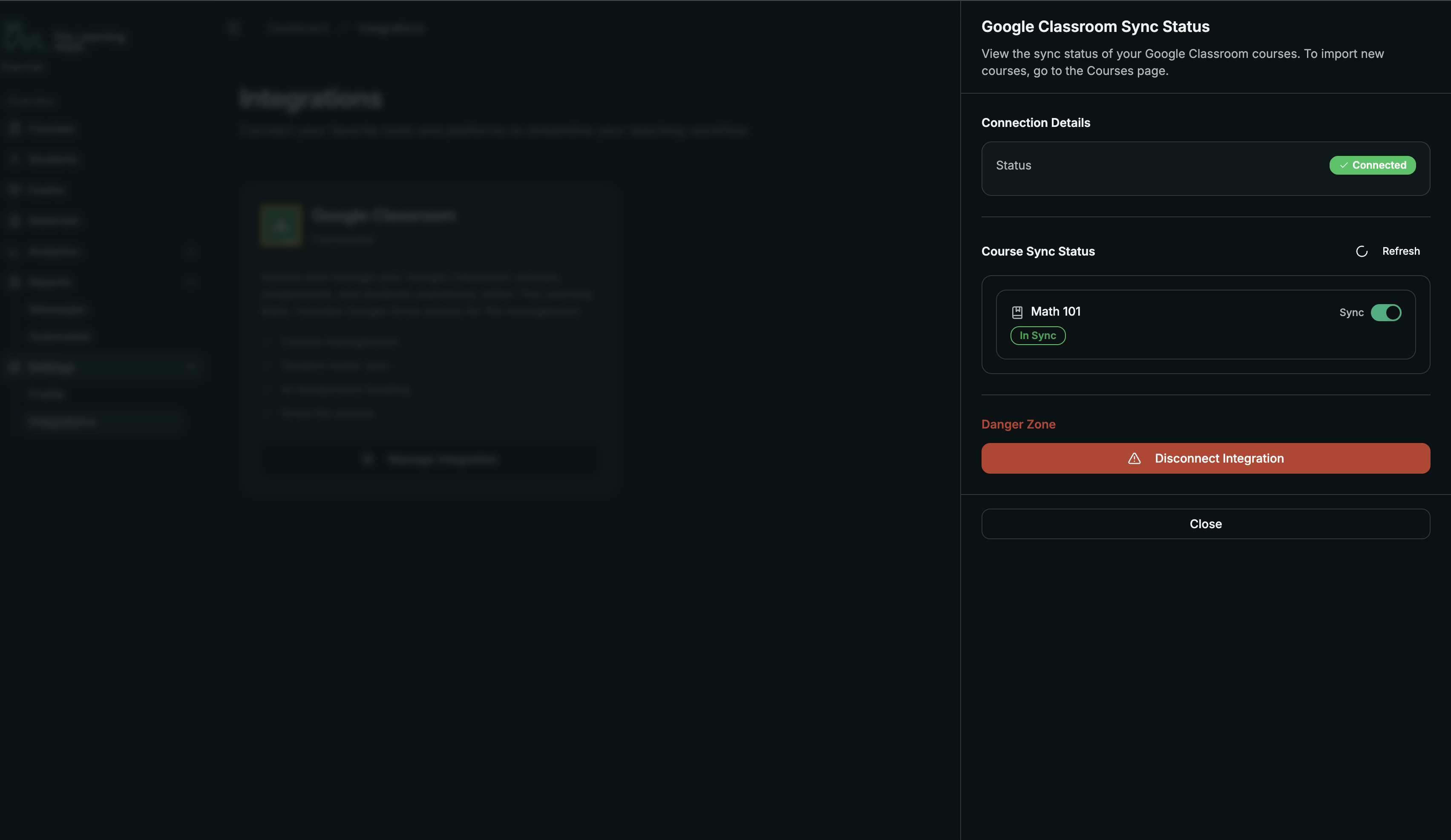
The integration card now shows Connected. You can return to this page later and select Manage Integration to review course syncing or disconnect the account.
Step 2: Import a Google Classroom course
If you closed the connection message, open Dashboard → Courses and select Import from Google Classroom.
- Select the course you want to import. Courses already connected to The Learning Mate are labelled Already imported.
- Select Next.
- Check the course name and student count.
- Choose the subject that the course should use in The Learning Mate.
- Select Confirm Import.
The Learning Mate fetches the Classroom course, creates the matching course, and syncs its students. Keep the window open until all three steps are complete. A successful import ends with Import completed successfully!
Step 3: Check the imported students
After the import closes, find the course on the Courses page.
- Open the course action menu and select Students.
- Compare the student list with Google Classroom before publishing the first exam.
- If a student is missing, return to Courses, open the course action menu, and select Sync Students.
Student syncing adds changes from Google Classroom to the linked course. It is worth syncing again if students joined the class after the initial import.
Step 4: Create the first Classroom-linked exam
Existing exams and assignments are not imported from Google Classroom. Course import brings the course and its students into TLM, but not its coursework. Any exam that needs to appear in TLM must be created in TLM and then published to Google Classroom from TLM.
- Open Dashboard → Exams.
- Select the imported Google Classroom course.
- Select Add New Exam.
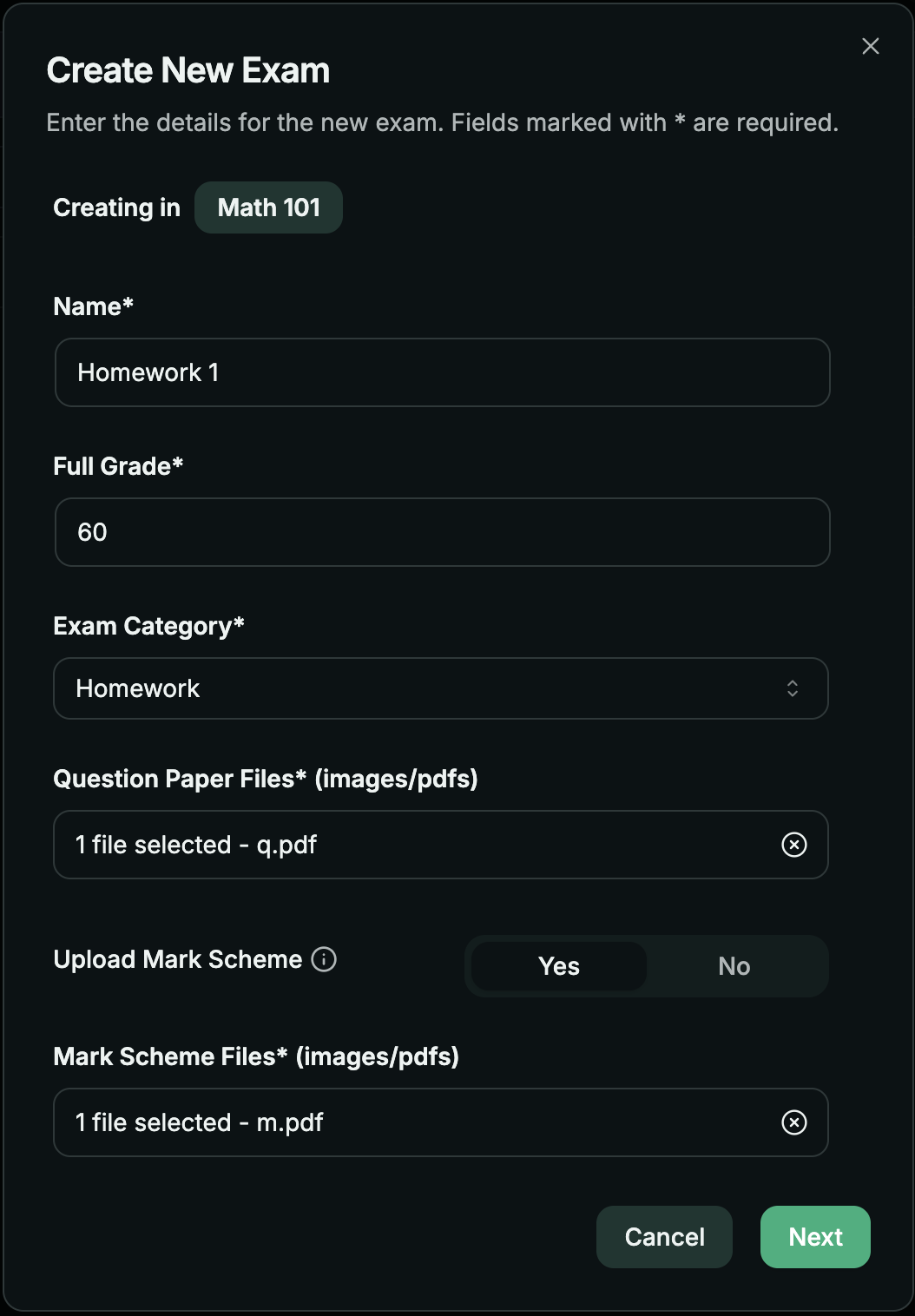
- Enter the exam name, full grade, and category.
- Upload the question paper.
- Upload the mark scheme, or choose the option to generate one with AI.
- Select Next to open the exam settings.
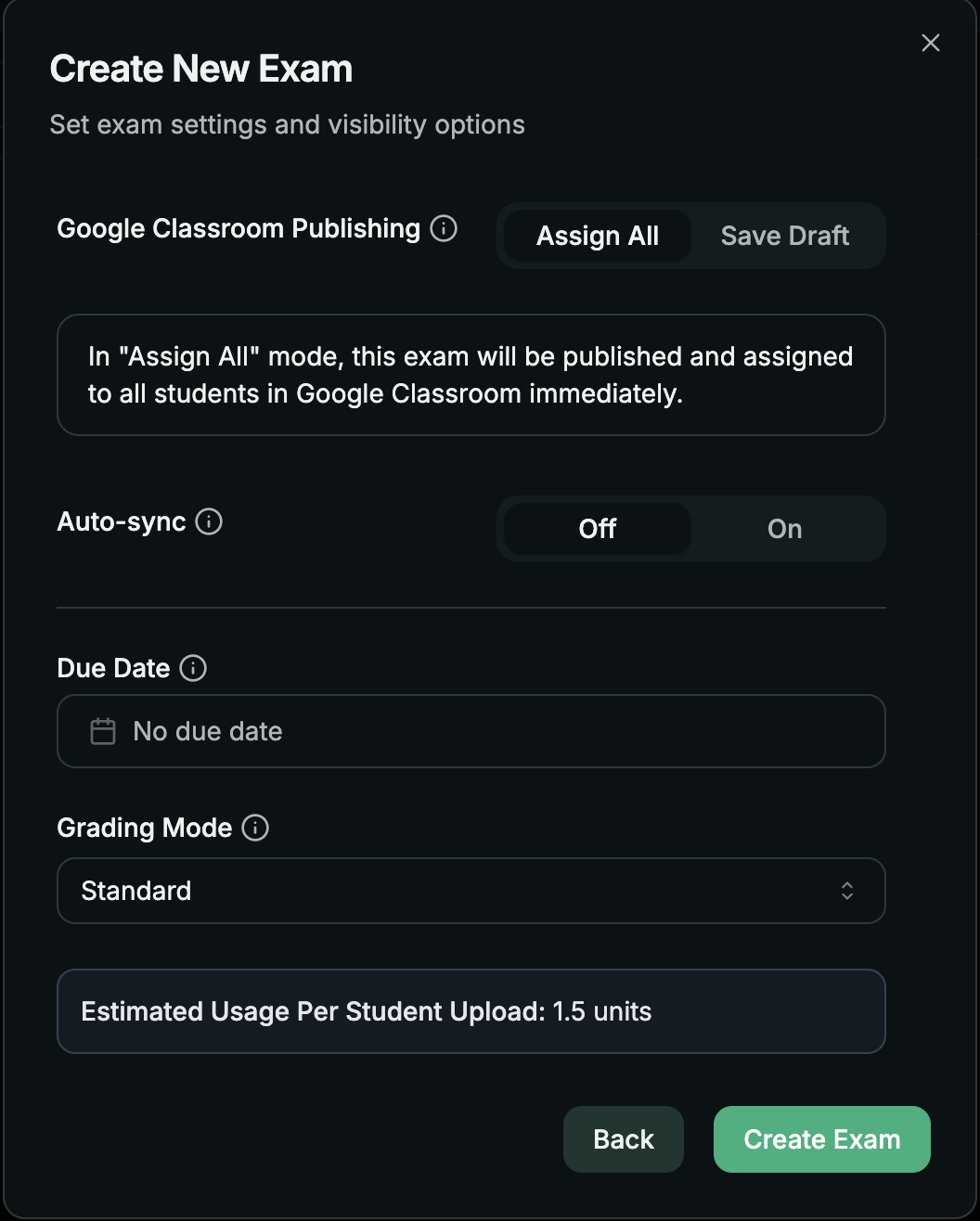
Under Google Classroom Publishing, choose how the assignment should appear:
| Setting | What happens |
|---|---|
| Assign All | Publishes the exam immediately and assigns it to every student in the Classroom course. |
| Save Draft | Creates an unpublished draft. To limit who receives it, open the draft in Google Classroom, choose the students there, and then assign it. |
TLM does not currently let you choose individual students during exam creation. That selection happens in Google Classroom after you choose Save Draft.
You can also:
- Set Auto-sync to On to send grades to Google Classroom automatically after grading is complete.
- Add an optional due date.
- Choose whether late Classroom turn-ins should be ignored or imported and marked as late.
- Select the grading mode for the exam.
Review the settings, then select Create Exam. File processing can take a few minutes, so keep the page open until creation has started successfully.
Step 5: Find the assignment and submissions
Select the newly created exam in The Learning Mate. In its details, select View in Google Classroom to open the matching Classroom assignment.
- If you chose Assign All, the assignment is published to the class.
- If you chose Save Draft, open the draft in Google Classroom, make any final changes, and assign it when ready.
- After a student turns in an answer file in Google Classroom, TLM automatically imports it into the linked exam under that student's name and starts marking it. The student does not need to upload the same work in TLM.
- With Auto-sync enabled, completed grades are sent back to Google Classroom automatically. If it is off, grades remain in The Learning Mate until you choose to publish them.
Troubleshooting
No courses were found
- Confirm that you connected the same Google account you use as a teacher.
- Open Google Classroom and check that the course is active rather than archived.
- Return to Integrations, disconnect Google Classroom, then reconnect the correct account and approve every requested permission.
Google says permission is missing or access is blocked
Reconnect from Dashboard → Integrations and approve the full permission request. If you use a school-managed Google Workspace account, ask your administrator whether third-party Classroom applications require approval.
The course import failed
Select Retry first. If the error returns, check that the course still exists and that your Google account can open it. Reconnect the integration if its permissions changed, then try the import again.
Some students are missing
Check that the students have accepted their invitation in Google Classroom. Then open the course action menu in The Learning Mate and select Sync Students.
The assignment is not visible to students
Open the exam and use View in Google Classroom. An exam created with Save Draft stays invisible until you assign the draft in Google Classroom. If you intended to publish immediately, use Assign All when creating the exam.
FAQ
Does importing a course change the original Google Classroom course?
No. Importing creates a linked course in The Learning Mate and copies its student list. Publishing an exam is the point at which The Learning Mate creates coursework in Google Classroom.
Can I choose which students receive an exam?
Yes. Choose Save Draft, then open the draft in Google Classroom and select the students before publishing it. Assign All sends it to the whole class immediately.
Do grades have to be sent back automatically?
No. Auto-sync is optional. Leave it off if you want to review results before publishing grades to Google Classroom.
What happens when new students join the course?
Use Sync Students from the course action menu to refresh the student list before assigning the next exam.
Can I disconnect Google Classroom later?
Yes. Open Dashboard → Integrations, select Manage Integration, and disconnect the account. Disconnecting stops future synchronization, so finish any active Classroom workflow first.